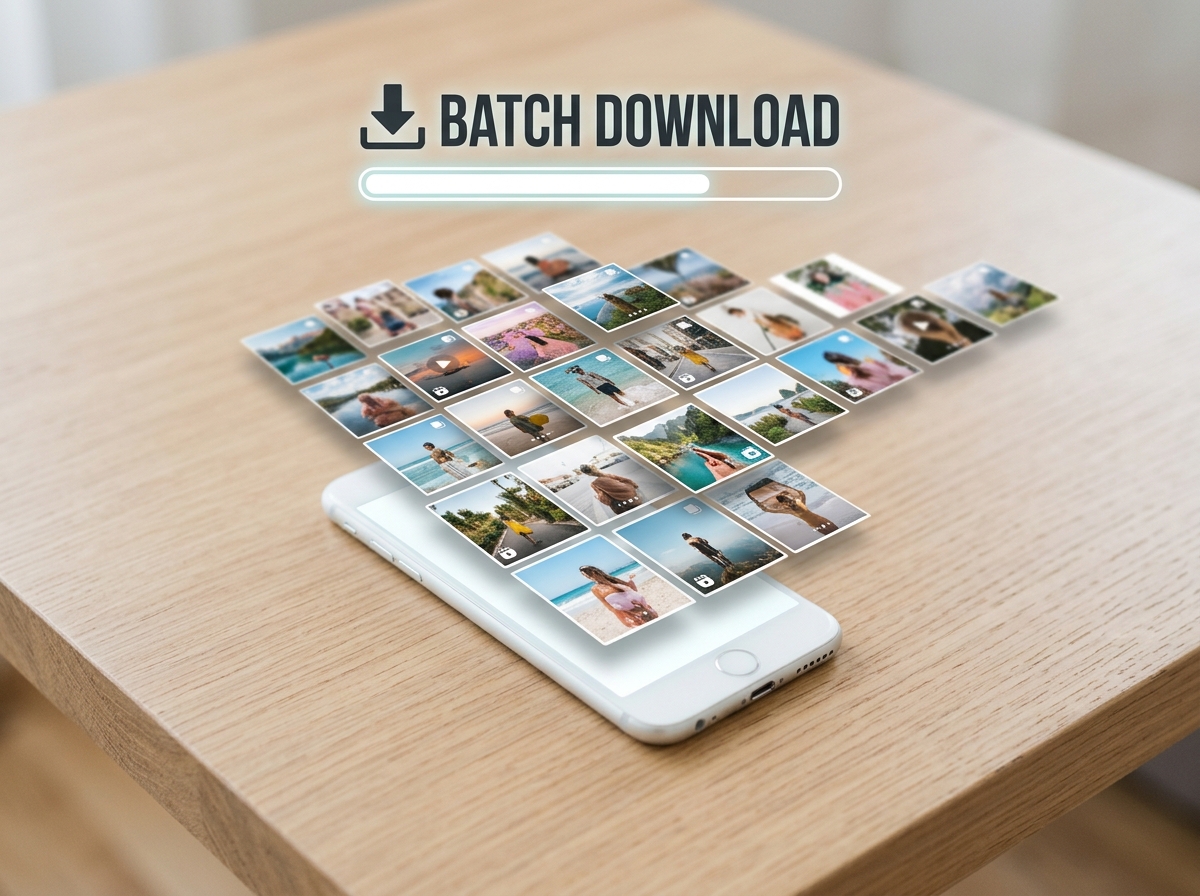
Instagram Carousel posts allow creators to share up to 20 photos and videos in a single post. Whether it's a step-by-step tutorial, an event photo dump, or an educational slide deck, carousel posts contain rich visual information that users often want to save for reference.
However, saving an entire carousel post slide-by-slide through manual methods like screenshotting takes time and degrades the overall image quality.
In this guide, you will learn how Instagram carousel posts work, why downloading them individually is inefficient, and how to extract and save all high-resolution images from a post simultaneously.
Understanding Instagram Carousel Posts (And Why Saving Them Is Tricky)
Carousel posts are interactive, multi-slide media sets. When viewing a carousel on the app, Instagram loads media dynamic frame by frame to keep feed scrolling fast.
Because Instagram groups up to 20 media files under a single post link, standard image-saving methods typically only capture the first image visible on screen. If you take screenshots of every slide, you lose the original image resolution, introduce screen clutter, and end up with cropped dimensions.
To save all slides cleanly, you need an online batch tool capable of parsing the primary URL and extracting all individual image and video source files contained within that post.
The Simple Guide to Batch Saving an Entire Instagram Carousel
Extracting every media file from a multi-post gallery takes only a few seconds when using a batch-capable web utility.
Method 1: Using an Online Batch Downloader for All Slides
Copy the Carousel Link: Open Instagram, find the carousel post containing multiple photos or videos, tap the Share button, and tap Copy Link.
Go to the Downloader Tool: Open your browser and navigate to
https://www.dropig.com/.
Paste the URL: Insert the copied carousel link into the main search box.
Process the Gallery: Click Download. The tool will automatically inspect the link and pull up every single photo and video attached to that carousel post.
Save All Items: Scroll through the extracted thumbnails and click Download under each photo or select the batch download option to save all files directly to your device.
Method 2: Manual Screen Captures (Why Quality Drops)
Taking manual screenshots of every slide remains an option, but it brings clear downsides:
Resolution Loss: Screenshots capture your phone’s screen resolution rather than the uncompressed original photo file.
On-Screen Elements: Screenshots accidentally include UI icons, page numbers, and status bars.
Aspect Ratio Distortions: Cropping manually often leads to uneven borders.
Troubleshooting Multi-Photo and Mixed Media Carousel Downloads
What Happens If a Carousel Contains Both Photos and Videos?
Modern carousel posts often mix high-res photos with short video clips. A complete downloader like Dropig detects the specific media format for each slide, serving high-resolution JPG files for images and uncompressed MP4 files for videos.
Why Did Only the First Image Download?
If a download tool only grabs the first image of a carousel, it likely lacks multi-media parsing capabilities. Switching to an updated utility like Dropig ensures the system indexes all sub-links tied to the primary URL rather than just the cover photo.
Conclusion: Save Time with One-Click Carousel Extraction
Downloading multi-slide Instagram posts does not have to be a slow, manual task. By utilizing a specialized web utility designed to parse carousel URLs, you can extract every photo and video slide in its original resolution with a single link.
Ready to Save Your Instagram Media?
Download Reels, Videos, and Photos directly in original HD with DropIG.