Instagram Reels have become the primary medium for entertainment, creative storytelling, and social media trends. Whether you are a content creator looking to study successful video formats, an editor gathering raw material for video projects, or simply someone trying to save a favorite video to watch offline, getting the highest possible video resolution is crucial.
However, many users notice that videos saved using standard screen recordings or basic download tools often look blurry, pixelated, or compressed.
In this guide, you will learn why Instagram compresses video quality and how to reliably download 1080p Reels in full original fidelity without losing sharpness or audio clarity.
Why Instagram Compresses Video Quality (And How to Bypass It)
Instagram processes millions of video uploads every single day. To save server bandwidth and keep the app running smoothly for users on mobile data, Instagram aggressively compresses video files during both playback and export.
When you download a Reel directly through the native Instagram app save options, the platform often serves a lower-bitrate version suited for quick mobile playback. Additionally, native built-in downloads frequently drop the original video audio track or attach watermarks.
To bypass these limitations and extract the full 1080p source file, you need to pull the video link directly from Instagram's servers using a high-fidelity web utility.
Step-by-Step: How to Get Original 1080p 60fps Reels
To download high-definition Reels without compression artifacts, follow this straightforward process using an online video downloader like Dropig.
Method 1: Use a Direct Link Downloader That Retains Resolution
Using a web-based downloader allows you to fetch the source media file directly from the link provided by Instagram.
Copy the Reel Link: Open the Instagram app or desktop website, locate the Reel you want to download, tap the Share / Send icon, and select Copy Link.
Access the Downloader: Open your mobile or desktop browser and navigate to
https://www.dropig.com/.
Paste the URL: Paste the Reel URL directly into the search bar.
Fetch and Download: Click the Download button. The system will process the link, retrieve the uncompressed MP4 file, and present a high-definition preview.
Save to Device: Click Save Video to store the original 1080p video file directly to your device gallery or downloads folder.
Method 2: Check Device and App Export Settings Before Saving
If you are uploading content or saving your own Reels, ensure your Instagram app settings allow high-quality processing:
Go to Instagram Settings > Preferences > Data Usage and Media Quality.
Toggle on Upload at Highest Quality.
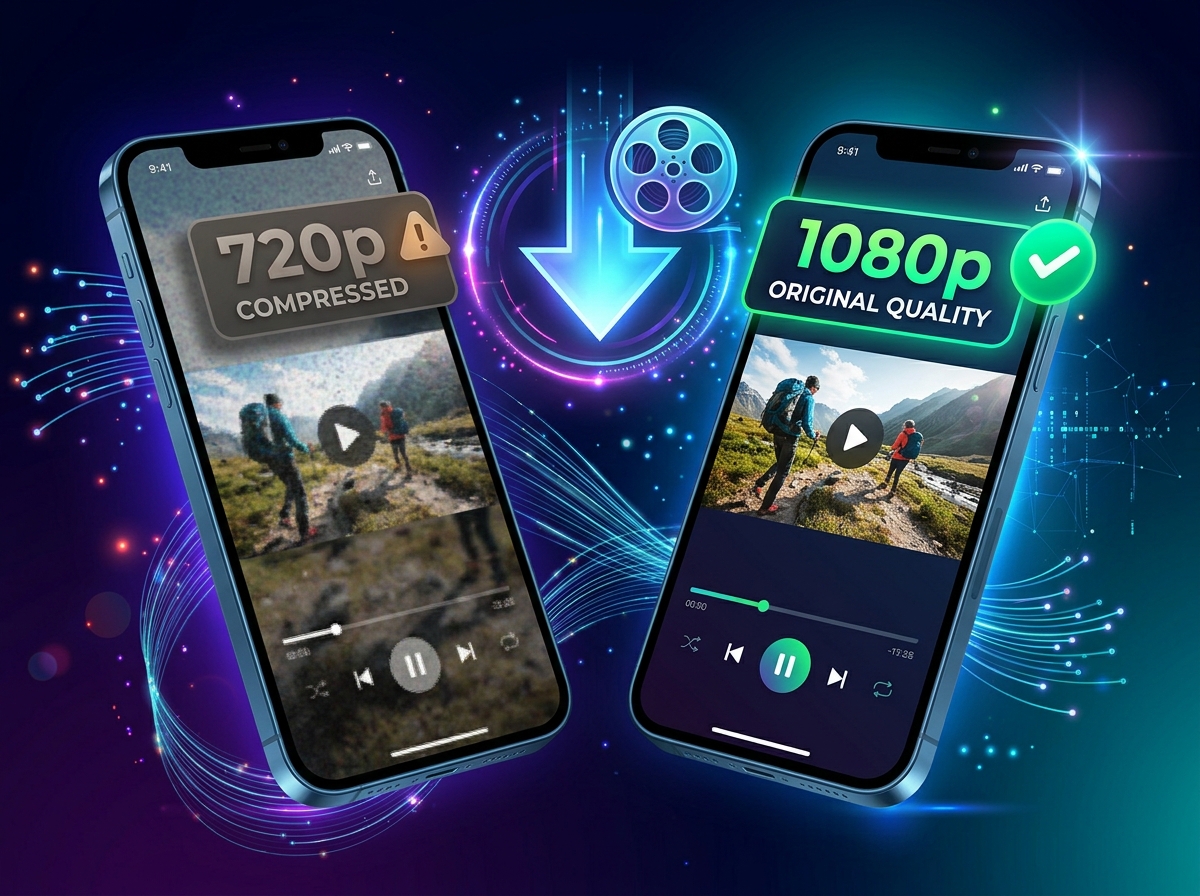
Comparing Video Resolutions: 720p vs. Original 1080p
Understanding video resolution helps clarify why choosing the right download method matters for your content:
720p (Standard Web Compression): Often used by basic screen recorders or low-cost saving tools. Result: soft details, blurred text overlays, and lowered audio bitrates.
1080p Full HD (Original Source Quality): The standard max resolution for vertical video (1080x1920 pixels). Result: crisp text, sharp visuals, clear motion at 30fps or 60fps, and uncompressed original audio.
Is There a Real 4K Instagram Downloader?
You may see some websites advertising "4K Instagram Video Downloaders." It is important to know that Instagram does not support 4K video uploads. All vertical videos uploaded to Instagram are capped at 1080p resolution (1080x1920 pixels).
Any tool claiming to convert Instagram Reels into 4K is simply upscale-stretching a 1080p file. The best quality you can achieve for an Instagram download is the true, uncompressed 1080p source file.
Conclusion: Keep Your Saved Content Crisp and Clear
Saving Reels in maximum resolution ensures your archived media looks professional and remains clean for editing or offline viewing. By using a direct web utility like Dropig, you bypass app compression and preserve the exact video and audio quality uploaded by the original creator.
Ready to Save Your Instagram Media?
Download Reels, Videos, and Photos directly in original HD with DropIG.